table photo → .xlsx / .csv
Image to Excel Converter
Turn a photo of a table, invoice or receipt into a clean spreadsheet — free, and a single image needs no account. Rows and columns are detected automatically, shown in an editable preview so you can fix any cell, then exported as .xlsx or .csv for Excel and Google Sheets.
pipeline
How it works
- 01Upload the table imageA photo or screenshot of any printed table, invoice or receipt.
- 02Auto-detect structureRows, columns and multiple tables are recognized — no borders required.
- 03Fix & exportEvery cell is editable before you download .xlsx or .csv.
a real run
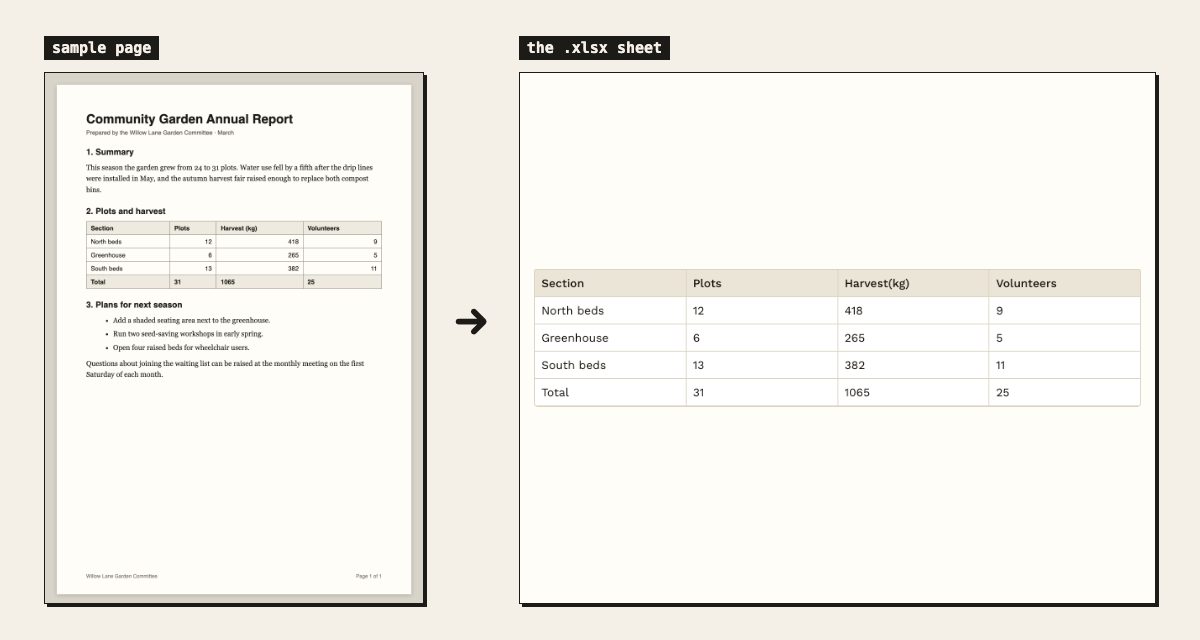
What one page looks like after
why this tool
Image to Excel Converter, done right
the spreadsheet you get
What lands in the workbook
OCR that hands you a wall of numbers has not saved you anything — with a table, the work is the grid. Rows and columns are worked out from how the content lines up in the photo, shown to you as an editable grid first, and written to a file only once you are happy with what is on screen.
- Rows and columns
- The grid is inferred from the layout, not from printed lines, so borderless tables — receipts, statements, neatly aligned lists — come back as a grid too.
- Several tables, several sheets
- Every table found in the image becomes its own tab in the preview and its own sheet in the downloaded .xlsx.
- Every cell editable
- The preview is a real editor. Fix a misread character, move a decimal point, retype a header — the export takes what is on screen, not what recognition first guessed.
- Excel or CSV
- .xlsx carries every sheet and opens in Excel, Google Sheets, Numbers and LibreOffice. .csv exports the sheet you are looking at as plain text, for an import or a script.
- Straight into your tools
- Send the workbook to Google Sheets in one click, or paste the grid into Notion, where it arrives as a real table rather than tab-separated text.
- What is not kept
- Cell colours, fonts, merged-cell styling and formulas are not reproduced — a photo does not contain formulas. What you get is values in a clean grid, which is the part you can compute on.
before you upload
Photographing a table so the columns survive
Column detection is geometry: what decides where one column ends and the next begins is where things line up. Almost every wrong column traces back to a picture in which they stopped lining up.
- Shoot square to the page
- A receipt photographed at an angle has columns that converge toward the top. Straight on, from directly above, is worth more than any setting.
- Flatten the paper
- Hold down a curled receipt or a bound page. A curve bends a column into a diagonal, and the split then lands in the wrong place.
- Include the header row
- Column headers give you the context to spot a misread at a glance — crop to the table, not to the numbers.
- Keep the whole table in frame
- A column cut off at the edge is gone for good. For a long receipt, photograph it in overlapping sections and drop them as a batch.
- Avoid glare
- A flash on a glossy receipt can erase a whole line of figures — and a blank line is harder to notice than a wrong digit.
the fine print
Spreadsheet limits and what happens to your data
- Input formats
- JPG, PNG and WebP — any still image your browser can decode, screenshots included. HEIC and TIFF need converting to JPG or PNG first.
- Resolution
- Photos are downscaled in your browser to a 2048-pixel long edge before anything is sent, so a maximum-resolution camera shot only costs you upload time.
- Not supported yet. Screenshot or export each page of a PDF statement as an image and drop the images together.
- Several tables, several pages
- Up to 20 images in one batch on a free account — each image's table becomes its own sheet in a single workbook.
- Check before you trust
- Recognised figures are a starting point, not an audit trail. The editable preview exists because the numbers matter more than the convenience.
- Your image
- It is deleted within 30 minutes of the conversion and the job record within two hours. The .xlsx is built in your browser, on your device, and never stored on a server.
faq
Frequently asked questions
Can it detect table structure without visible borders?
Yes. Rows and columns are inferred from the layout, so borderless tables, receipts and aligned lists work. If a column lands wrong, fix it directly in the editable preview before exporting.
Does it work on handwritten invoices?
Clearly printed tables give the best results. Neat handwriting often works, but always check the editable preview — every cell can be corrected before you export.
CSV or XLSX — which should I download?
Both are free. XLSX keeps multiple sheets and opens directly in Excel or Google Sheets; CSV is a single sheet in plain text, handy for imports and scripts.
Can it handle several tables in one photo?
Yes — each detected table becomes its own sheet in the downloaded .xlsx, with a tab per table in the preview.
Do formulas come across into Excel?
No — a photograph of a spreadsheet contains the results, not the formulas that produced them. You get the values in a clean grid; add your own formulas in Excel or Google Sheets afterwards.
What happens to merged cells and two-row headers?
They are flattened into ordinary cells. A two-row header usually arrives as two rows, which you can merge, retype or delete in the editable preview before you export.
Can I convert a bank statement or a long receipt?
Yes, as long as the whole table is inside the frame — a column cut off at the edge of the photo cannot be recovered afterwards. For anything longer than one photo, shoot it in overlapping sections and drop them together; each image becomes its own sheet in one workbook.
How accurate are the numbers?
Accurate enough to save the typing, never accurate enough to skip the check. That is exactly why the preview is an editor rather than a read-only result: the only person who can confirm a figure against the paper in front of you is you.
next door